
Getting started with Socialbot
Five steps take you from sign-up to a first delivery. Create an account, pick a plan for one platform (or the $4 trial), add a channel by its @handle, start an instance, then watch it fill on the dashboard. How soon the first one starts moving depends on the service, from within 15 minutes for TikTok views to within 12 hours for YouTube subscribers.
What an instance is on Socialbot
An instance is one run of one service, aimed at a single post, video, profile or live stream. “2,000 views on Sunday’s brake-fix video” is one instance. “250 followers to @yourhandle” is another.
There’s no credit balance behind it. Each instance spends part of your plan’s allowance for its metric, then delivers at that service’s daily pace. So 250 TikTok followers can land the same day at up to 5,000 a day, while 400 YouTube subscribers take 2 to 4 days at 100–200 a day.
You can run several instances at once, across channels and metrics. YouTube subscribers are the exception: one subscriber instance per channel at a time.
Step 1: create a Socialbot account
Press Sign Up at the top right of the site (on a phone, open the menu first). The form asks for three things, and the dashboard opens as soon as you send it.
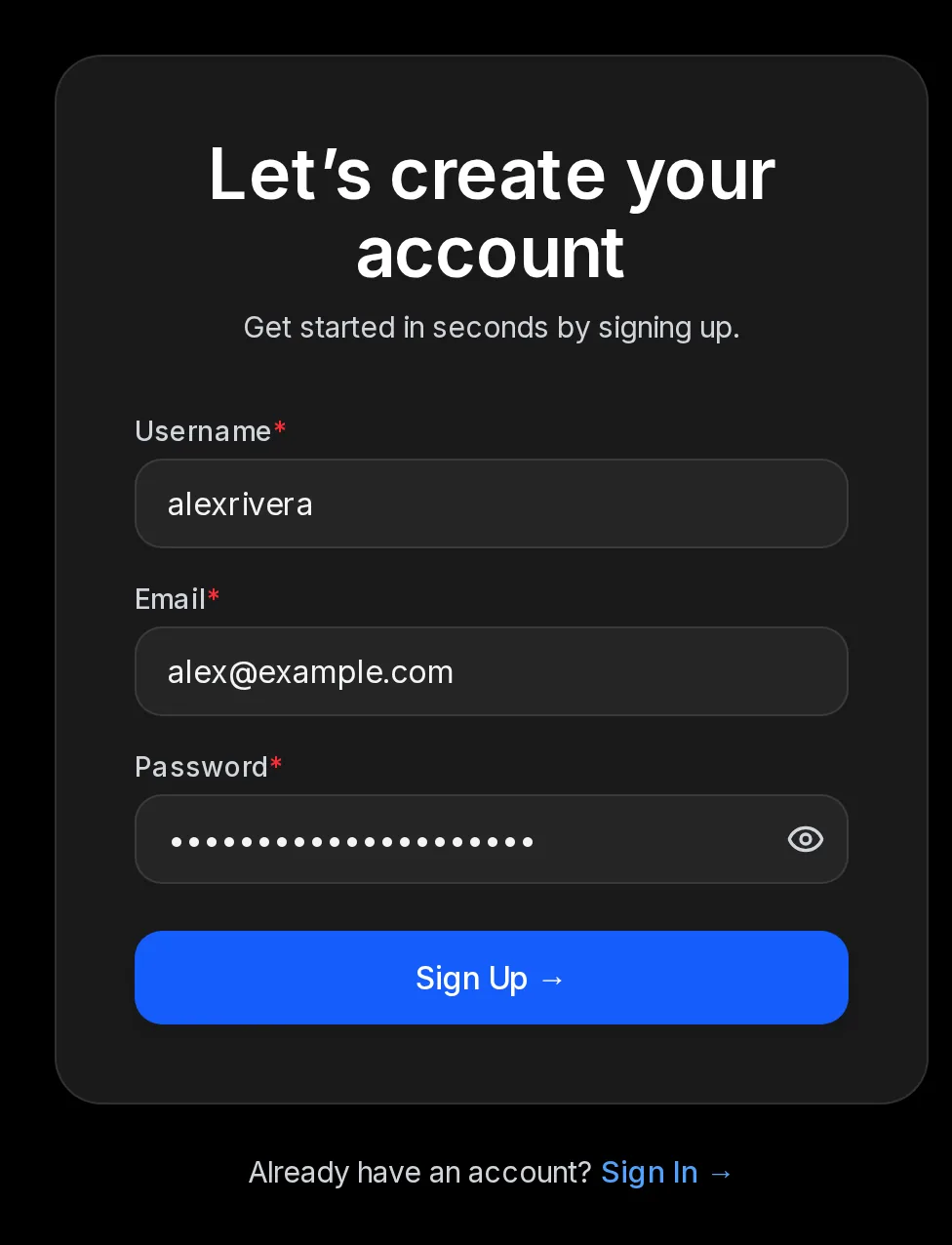
- Username: your name on Socialbot, shown at the top right once you’re in
- Password: for Socialbot only, never your TikTok, Instagram or YouTube password
- Sign Up: creates the account and opens the dashboard
We never ask for a social media login, and there’s no app to install. Signing in later, checking your usage and managing sessions are covered in your account and settings.
Step 2: pick a plan for one platform, or the $4 trial
Open plans and prices and choose the platform first, because each plan covers exactly one. A plan gives a set quantity of every metric there, renewed every 7 days on weekly billing or every 30 on monthly, and every channel you add on that platform spends from the same pool.
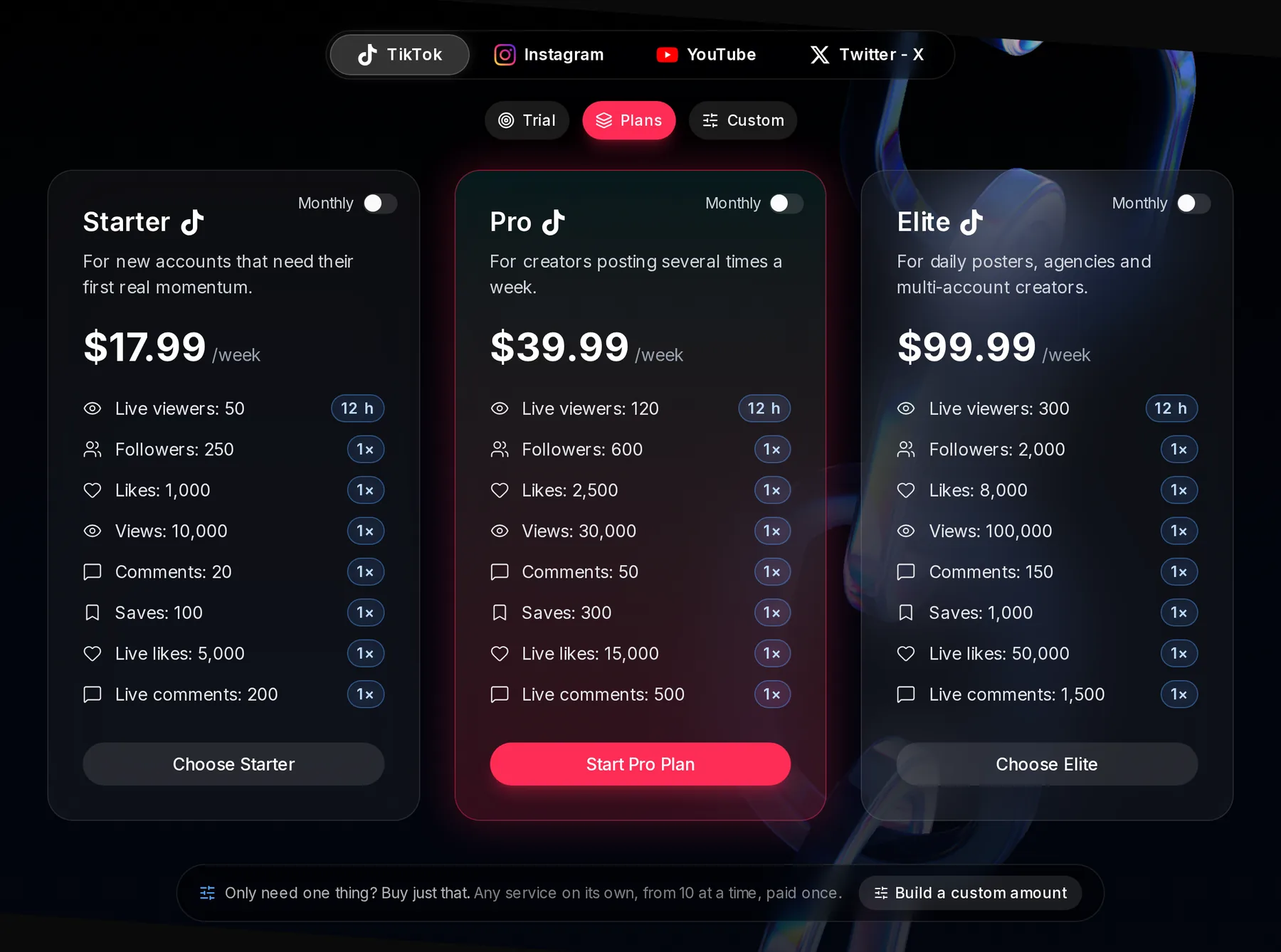
- Platform: TikTok, Instagram, YouTube or X
- Trial, Plans or Custom
- Monthly: switches the cards to monthly prices and amounts
- Price per week
- 1×: you get this amount once every 7 days (every 30 days on monthly)
- Choose Starter, Start Pro Plan or Choose Elite
| Platform | $4 trial (12 hours) | Starter weekly | Starter monthly |
|---|---|---|---|
| TikTok | 15 live viewers for 2 hours of streaming, 50 followers, 200 likes, 2,000 views, 5 comments, 50 saves, 50 live comments, 1,000 live likes | $17.99 | $53.99 |
| 100 followers, 200 likes, 2,000 Reel views, 10 comments | $12.99 | $44.99 | |
| YouTube | 25 live viewers, 100 AI chat messages, 50 subscribers, 100 likes, 1,000 views, 100 Shorts views | $17.99 | $53.99 |
| X (Twitter) | 50 followers, 100 likes, 100 retweets, 2 comments, 2,000 views | $16.99 | $49.99 |
The trial lets you watch each service run once for a one-time $4. On YouTube, buy it close to a stream: live viewers and AI chat only work while you’re live, and a trial bought at 9 am is over by 9 pm.
Press the plan’s button and choose how to pay: card, Apple Pay or Google Pay through Stripe, or crypto through Cryptomus. Auto-renew on a card takes 10% off the plans (trials and custom amounts are one-time purchases). If you need more than your plan includes, the Custom tab lets you add custom amounts metric by metric, 10 at a time, on top of a plan or on their own; you pay once and they stay until you use them.
Step 3: add a channel by its @handle
On the dashboard, each platform has its own section. Press the Add a TikTok profile card (or the Instagram or YouTube one) and this dialog opens.
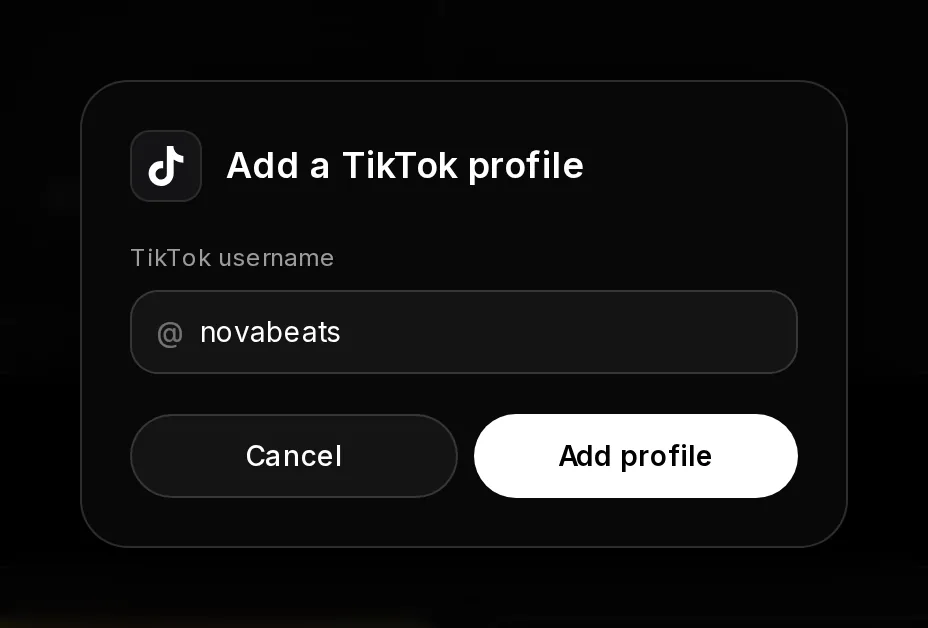
- The username, without the @
- Add profile: Socialbot looks the account up and adds its card
- Cancel
There’s no preview step. The lookup runs when you press Add profile, and the new card shows the avatar, name and follower count. A TikTok or Instagram channel then gets a phone-style preview of the profile, and a YouTube channel gets a live dashboard that picks up your stream when you go live.
Four settings stall delivery if they’re wrong. Fix them before your first instance.
- TikTok followers: the account must be public while they arrive.
- Instagram followers: turn off “Flag for review” (Settings → Follow and invite friends), or Instagram holds new follows for your approval.
- YouTube subscribers: the subscriber count must be public and the channel needs at least one video longer than 5 minutes. Shorts-only channels aren’t accepted.
- YouTube views: the video can’t be region-blocked.
Step 4: start your first instance
Press the plus on the channel’s card, or open the channel and press Create instance. Nothing is sent until you press Start instance, and the form shows a delivery estimate first.
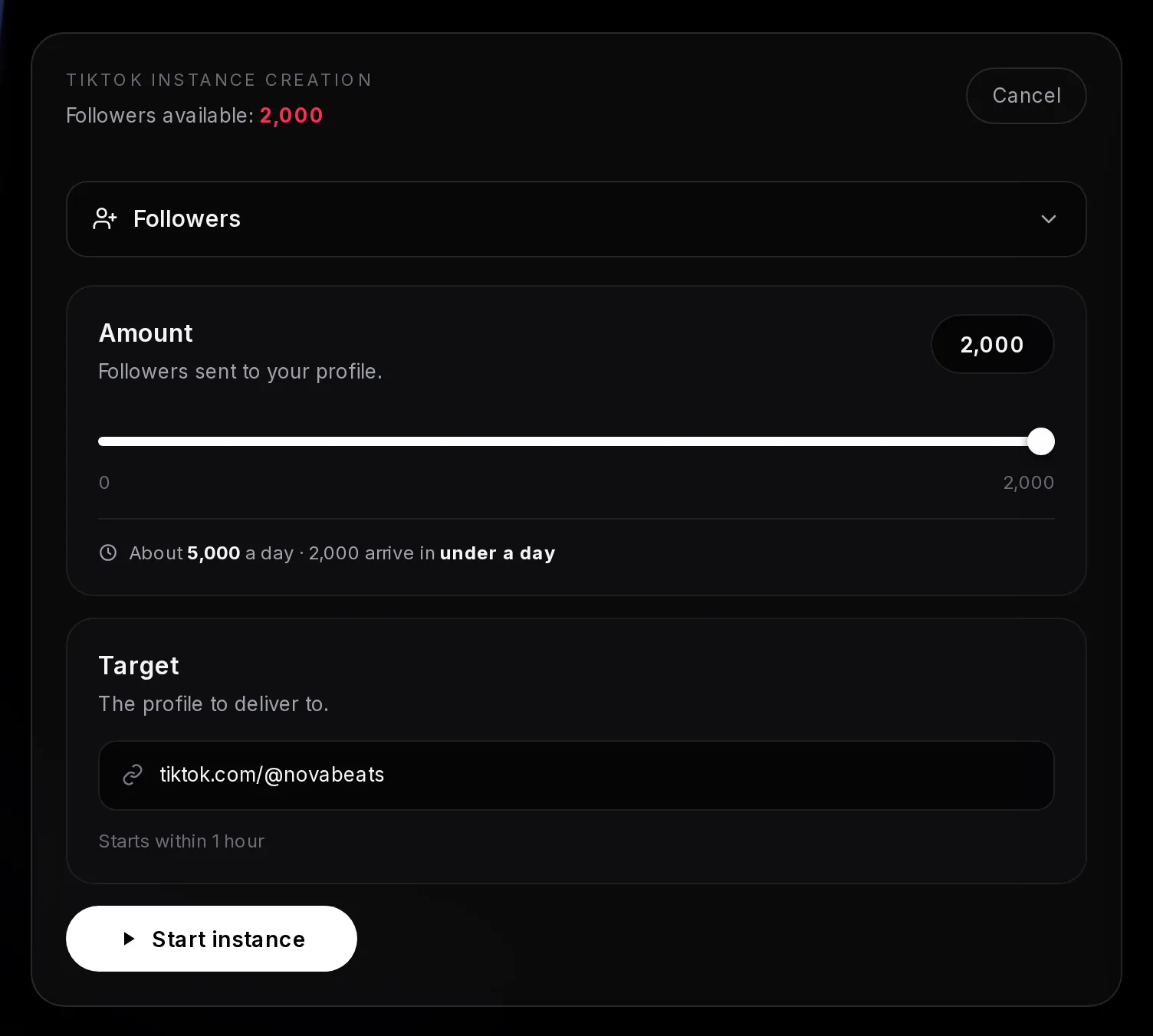
- What’s left of this metric in your plan
- Service picker
- Amount
- Slider: it stops at what’s left
- Pace and how long your amount takes
- Target: here the profile, since followers go to it
- Delivery note: the start time
- Start instance: sends it now
- Pick the service. Followers, likes, views and the rest, each listed with what’s left of it this period.
- Set the amount. The slider won’t go past your remaining allowance. Some services have a smallest amount you can start, such as 100 TikTok views or 50 YouTube subscribers.
- Check the target. Followers and subscribers need nothing extra. Other metrics take the link to one post, Reel or video, except YouTube live viewers and AI chat, which find your current stream on their own.
- Read the pace line, then press Start instance. For 600 YouTube subscribers it tells you they arrive at about 200 a day and take about 3 days.
Say you run a 400-follower TikTok bike-repair account on Starter weekly ($17.99). You post a brake fix on Sunday evening and start 2,000 TikTok views on it. Views begin within 15 minutes, the pace line reads under a day, and 8,000 of the week’s 10,000 views stay free for your next posts.
Links, services and the Instagram differences are in TikTok and Instagram instances. YouTube live viewers add one more field, how long the viewers stay, covered in YouTube live viewers and AI chat.
Step 5: watch the instance deliver
The instance shows up on the channel’s page with a status and a progress bar. The count under the bar reads like “1,640 / 2,500 delivered”.
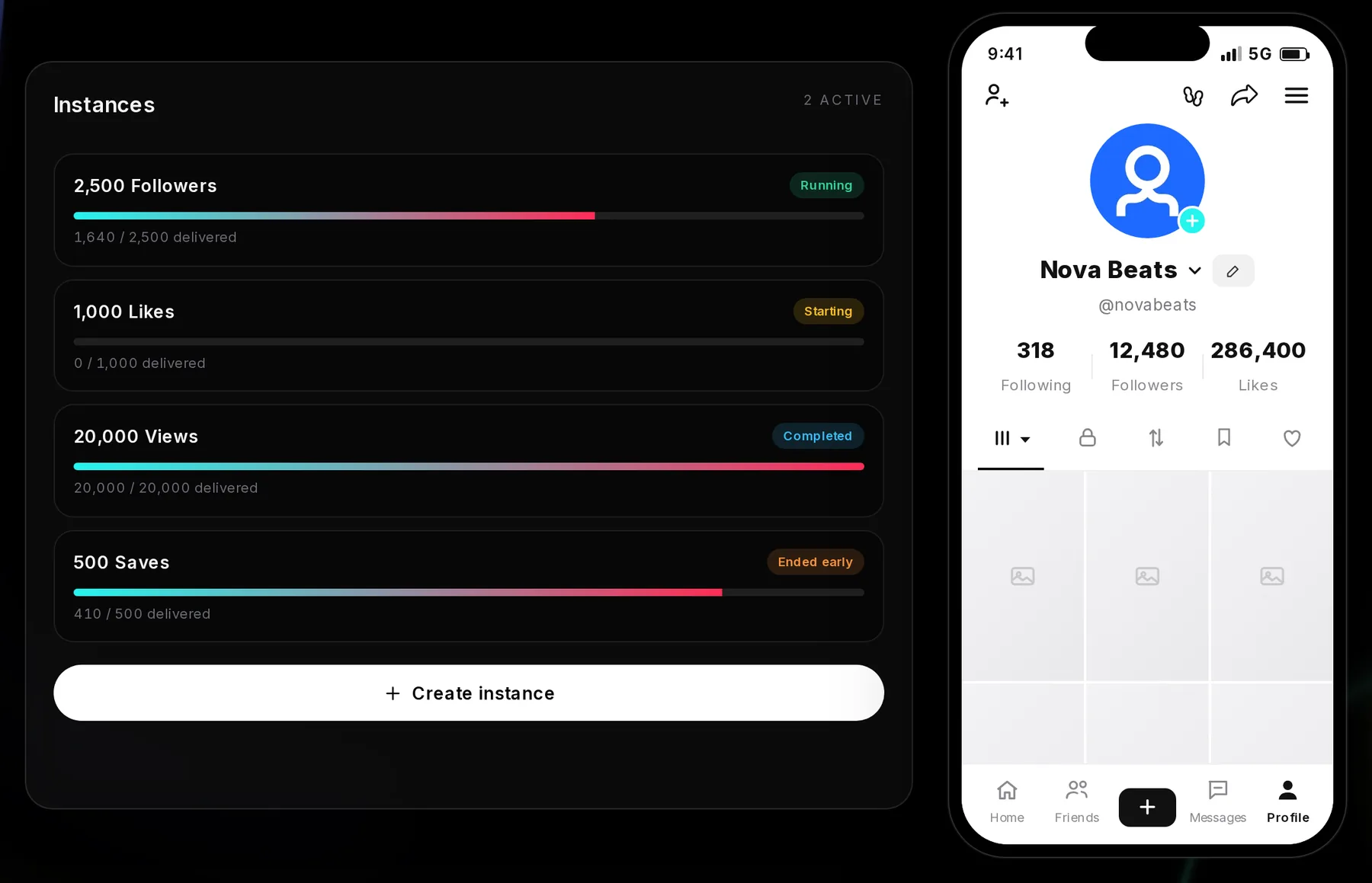
- An instance: amount and service
- Status
- Delivered so far
- An instance that ended early: whatever wasn’t delivered went back to your allowance
- Create instance: start another
It reads Starting for its first minute or so, then Running, then Completed once the full amount has arrived. A Running instance can show 0 delivered for a while and still be on schedule: TikTok followers begin within 1 hour and YouTube views within 2.
Counts can drop over time on every platform, and what drops isn’t sent again, so aim a little past the number you want. Every status is explained in the dashboard and instances guide.