
How Auto-Start works on YouTube
Auto-Start is one rule you save on a YouTube channel: how many live viewers every stream should open with, and how long they stay. Socialbot checks your channel every few minutes, and the moment it sees you live it starts those viewers by itself. You don’t have to be at your computer, and there’s nothing to paste.
What an Auto-Start rule does
A rule is one channel, one amount and one length, such as “400 live viewers for 2 hours, every time I go live”. When the check sees your stream, the rule places an ordinary instance: it appears in your instance list and the viewers arrive within 15 minutes, exactly as if you had started it by hand.
| Auto-Start | |
|---|---|
| YouTube live viewers | Yes: fires once per stream, when your channel goes live |
| Everything else on YouTube | Start each instance by hand |
| TikTok and Instagram | Start each instance by hand |
A rule spends the same allowance as an instance you start yourself, and it is all or nothing: if the room left under your plan’s live-viewer limit is smaller than the rule asks for, that stream is skipped and nothing is sent, never a part of it. The next stream fires normally.
How to create an Auto-Start rule
- Open the YouTube channel from your dashboard and press Create instance. (Or press Auto-start, then New Auto-Start rule, which opens the same form ready to go.)
- Pick Live viewers and set how many each stream should get, up to the most your plan allows at once.
- Turn on Save for Auto-Start at the bottom of the form, then pick how long the viewers stay: 30 minutes, 1 h, 1 h 30, 2 h, 3 h, 5 h or 6 h. Every live-viewer instance the rule starts lasts that long.
- Press Save for Auto-Start. The target reads “Your next live stream”, so there is no link to paste.
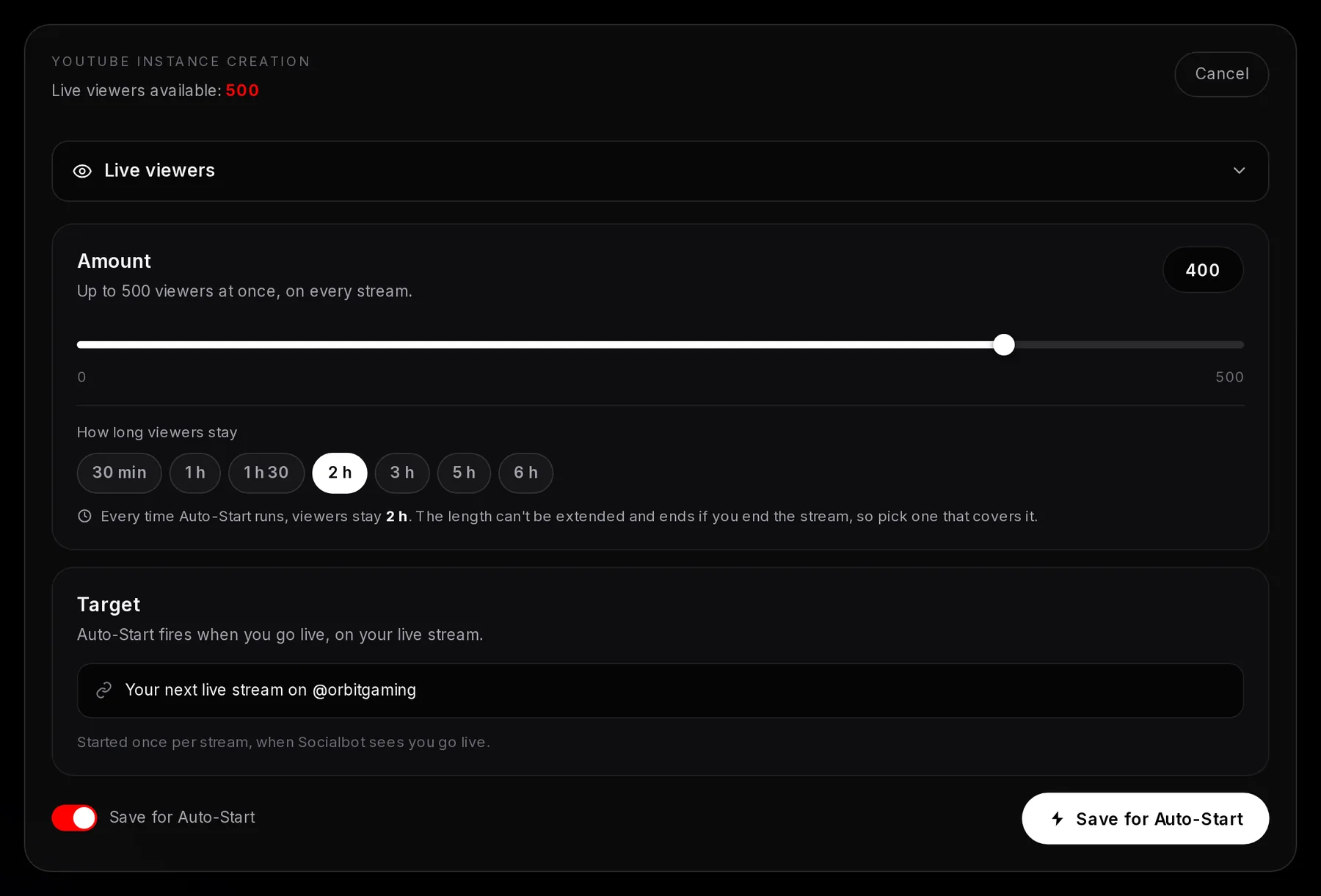
- How long the viewers stay
- How long the viewers from this rule stay
- Target: Your next live stream
- Save for Auto-Start switched on
- Save for Auto-Start
One rule per channel: saving again replaces it. Once viewers have started, their length can’t be extended and they leave when your stream ends, so pick a length that covers a normal stream of yours rather than your longest ever.
How Socialbot knows you’re live
Every few minutes, Socialbot looks at each channel that has a rule and whose owner has an active YouTube plan, and asks the one question it needs: is this channel streaming right now? Nothing is installed, you never give us a Google login, and the dashboard doesn’t have to be open. Your viewers are normally started within a few minutes of you going live.
Each stream fires once. If your connection drops and the same stream comes back, Socialbot recognises it and does not start viewers a second time. A new broadcast is a new stream, so it gets its own viewers.
Where to see, change or delete a rule
Press Auto-start at the top of the channel page. The dialog shows the rule with its amount and length, and the bin icon deletes it. To change the amount or the length, save the rule again with the new numbers.
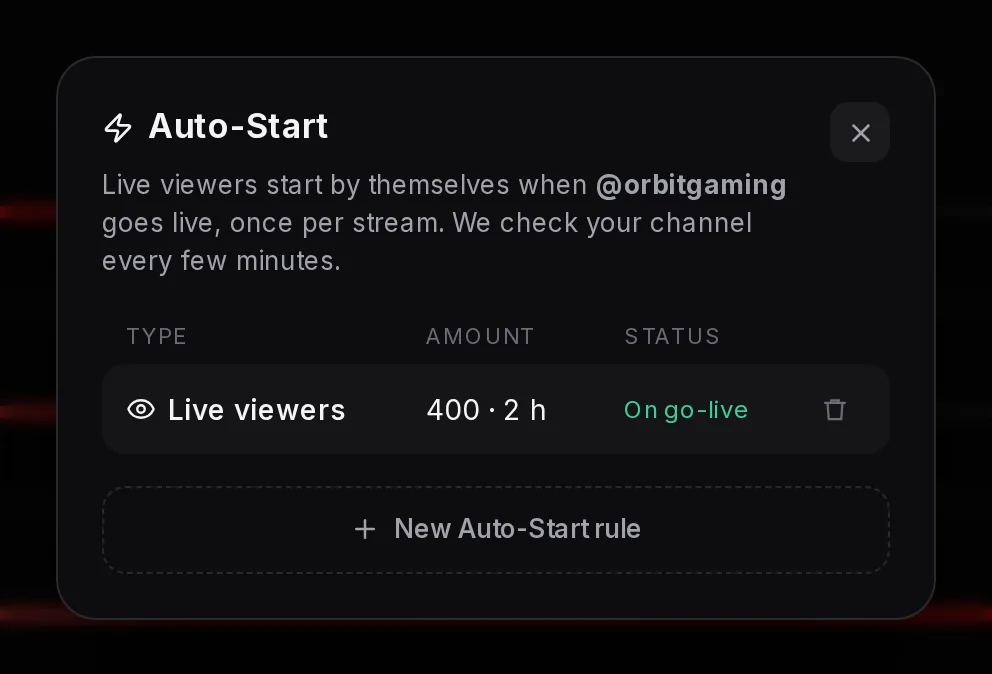
- The rule, with its amount and length
- On go-live: fires each time you go live
- Bin: deletes the rule
- New Auto-Start rule
Deleting a rule never touches live viewers that are already running: that instance finishes its length as normal.